



Photo Filters Online
Enhance your photos with filters, brightness, contrast, saturation, and color adjustments - all in your browser, instantly. Make any image look its best without downloading software.


or click to browse
Apply Filters and Adjust Colors
Apply photo filters and make quick color adjustments online without using complex editing software. This tool helps improve the overall look of your image with simple controls for brightness, contrast, saturation, and visual tone.
Upload Your Photo
Drag and drop or click to upload your image in any common format.
Apply Filters & Adjustments
Choose from preset filters or manually adjust brightness, contrast, saturation, and more using sliders.
Download Enhanced Photo
Save your enhanced photo in your preferred format. No watermark added.
Quick Fixes: Brightness, Contrast & Saturation
Small image adjustments can make a big difference in how a photo looks and feels. Use these controls to correct lighting, improve clarity, and make colors appear more balanced, vivid, or visually consistent.
Brightness
Lighten underexposed photos or darken overexposed ones. Fix photos taken in poor lighting conditions in seconds.
Contrast
Increase contrast to make your subject pop or reduce it for a soft, matte look. Great for portrait and product photography.
Saturation
Boost color saturation for vivid, eye-catching images or reduce to near zero for a black and white effect.
Sample Filter Results
These examples show how filters and color adjustments can improve mood, clarity, and overall visual quality. Even simple edits can make an image look cleaner, sharper, and more suitable for content, branding, or promotion.
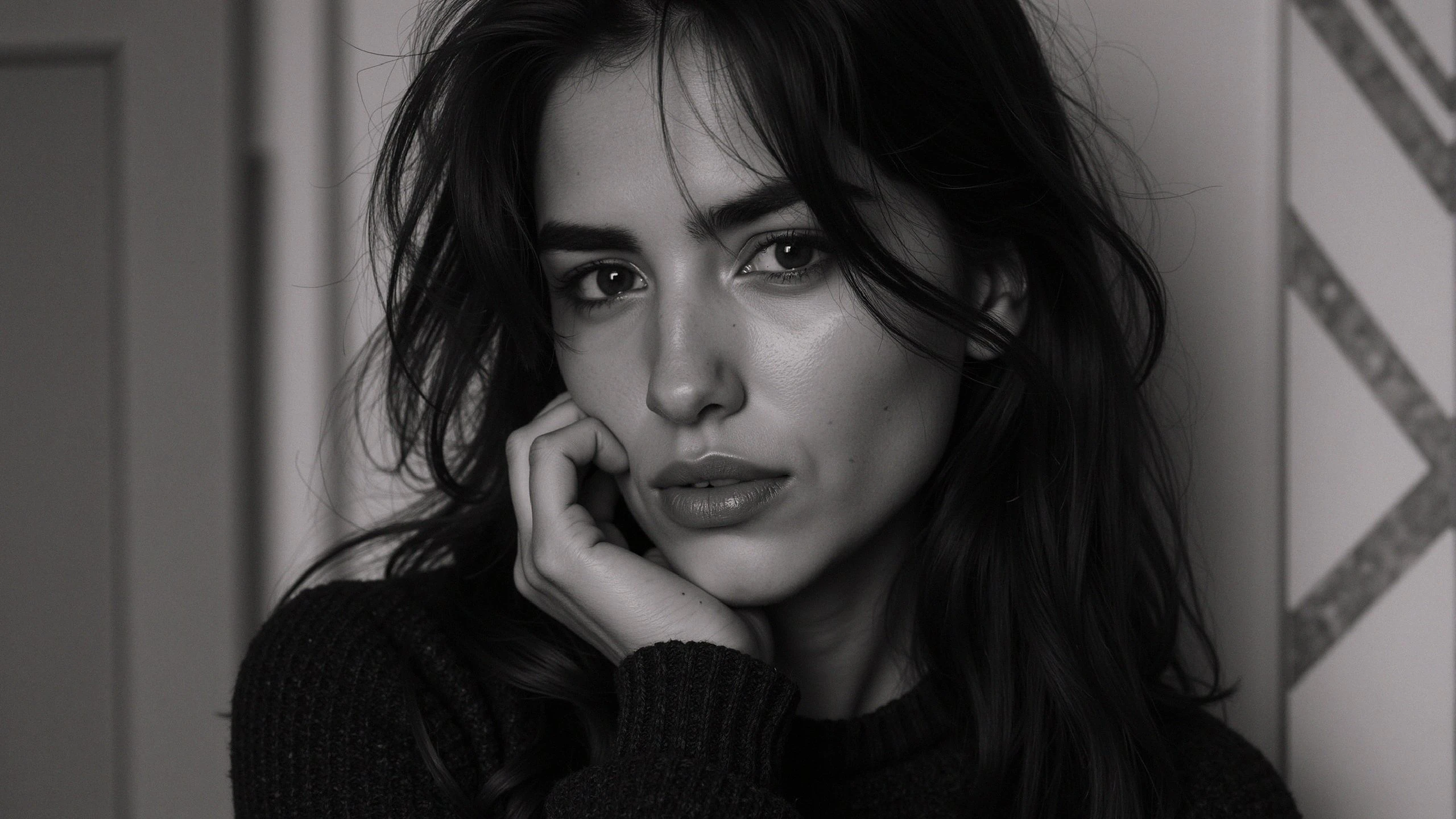
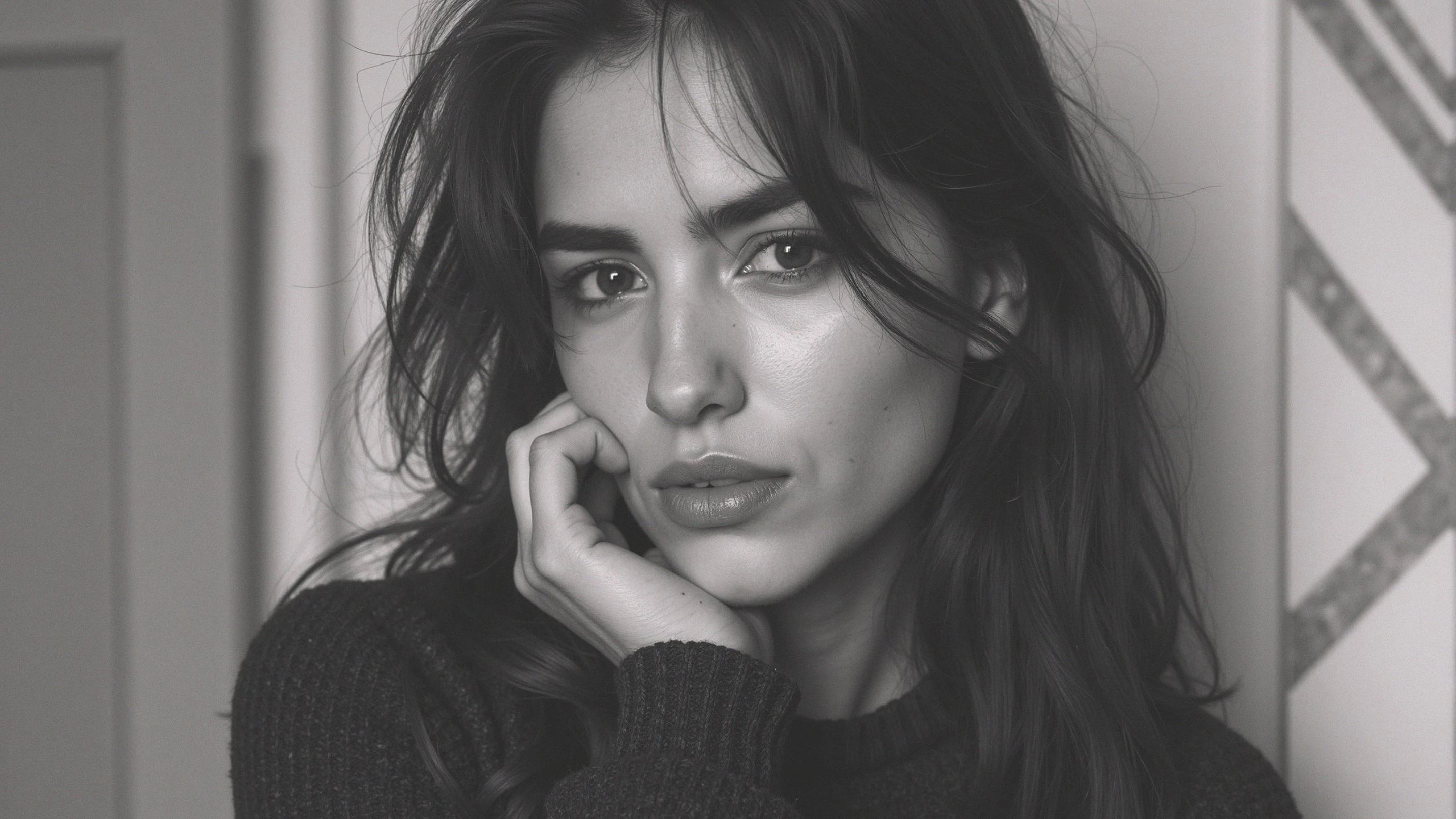
Brightness Correction
Lift shadows and exposure to make dark portraits look clearer, softer, and easier to read at a glance.
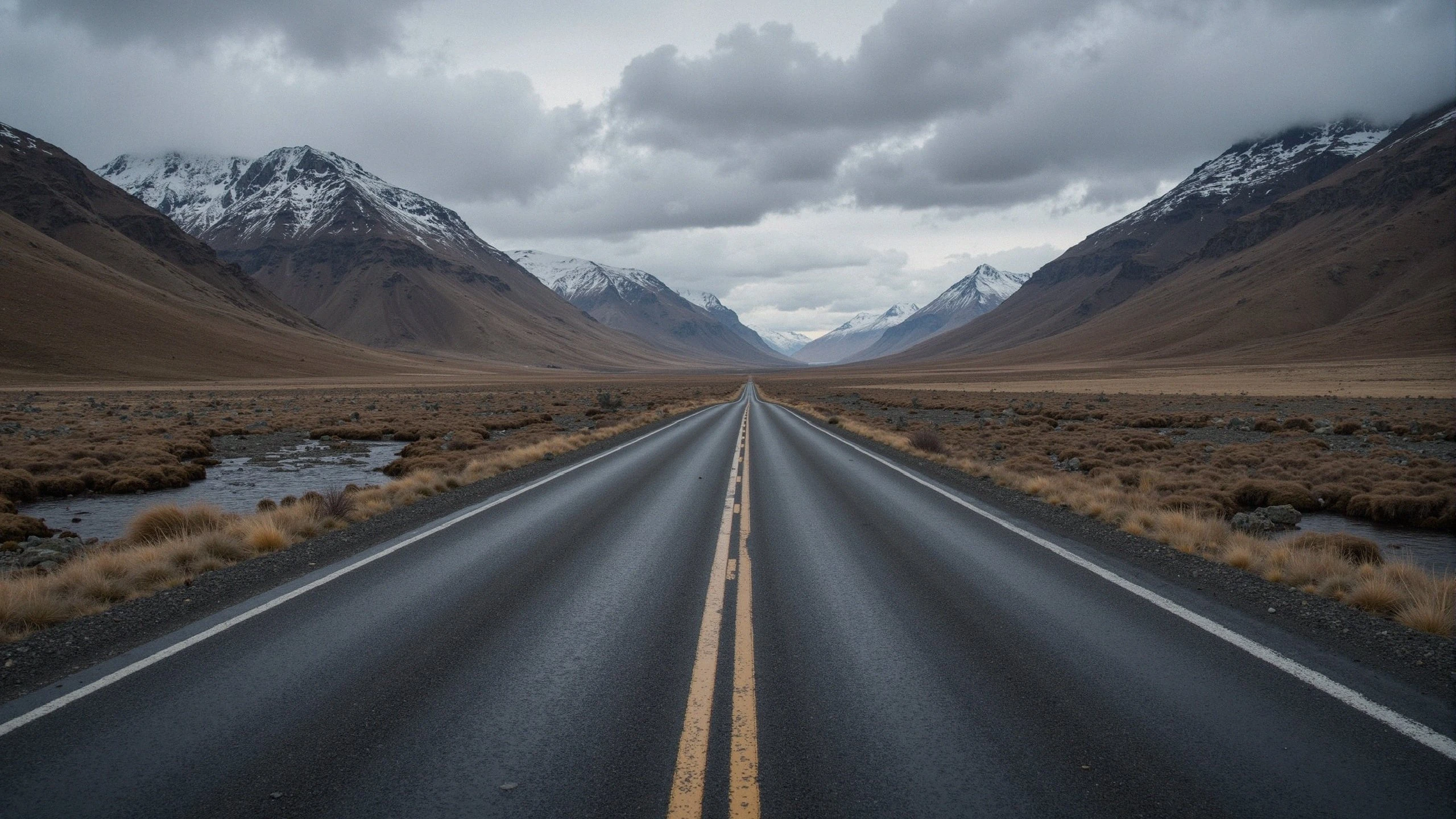
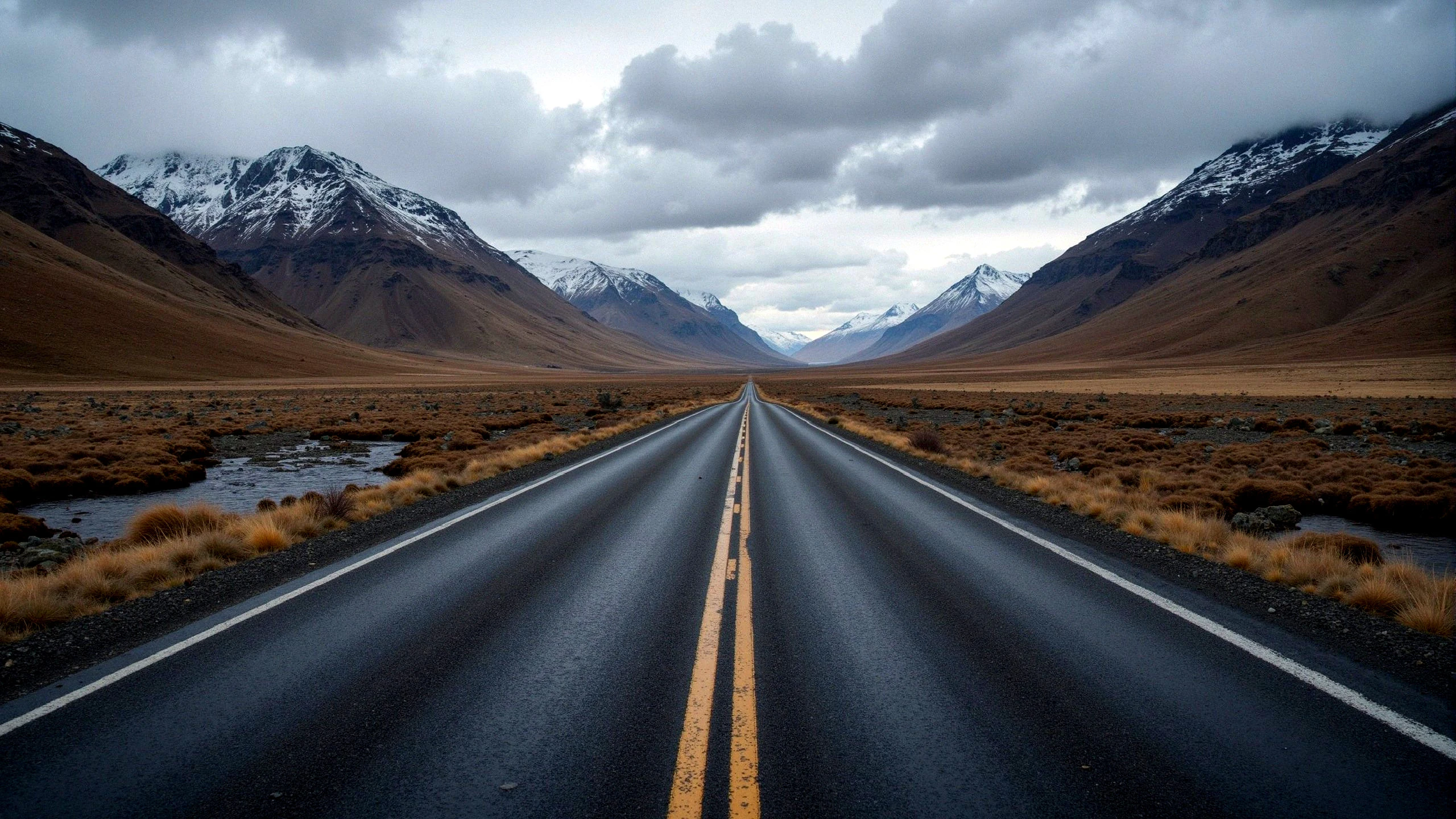
Color and Contrast Tune-Up
Boost contrast and color depth to turn flat landscape photos into sharper, more vivid scenes.
Use Cases
Photo filters are useful for social media content, product photography, portraits, and everyday image enhancement. They help create a more polished visual style without requiring advanced editing skills or time-consuming manual work.
Social Media Photos
Make your Instagram feed look cohesive by applying consistent filters and color grading to all your photos.
Product Photography
Color-correct product photos to accurately represent item colors and ensure consistent appearance across your catalog.
Portraits
Enhance skin tones, reduce shadows, and brighten eyes to make portrait photos look professional and polished.
Frequently Asked Questions
Find quick answers to common questions about applying filters, adjusting brightness and contrast, improving color, and understanding how these edits affect the final image.